Low latency
Inputs cross your local network in about 12 milliseconds — quick enough for fighting games, platformers and racing titles.
PS Controller puts a full PlayStation-style gamepad on your phone. Inputs travel across your own network to a small receiver app on the PC — no cables, no pairing screens, no account.
Four things the app has to get right, and how it does them.
Inputs cross your local network in about 12 milliseconds — quick enough for fighting games, platformers and racing titles.
Map every face button, stick, trigger and shoulder to a keyboard key or mouse action, then save a profile per game.
Nothing to plug in and nothing to charge through a port. The app and the receiver talk directly over WiFi.
Home router, mesh system, guest network or a phone hotspot. If your phone and PC can see each other, you can play.
One install on the phone, one on the PC, then a single address to type.
Download PS Controller from the App Store and open it. No sign-up, no account, no controller to pair.
PS Controller
Free · Games · iOS 16+
Install the receiver on your PC and launch it. It stays open in the background and shows the address it is listening on.
Loading virtual gamepad…
Listening on 192.168.1.42:8770
Ready for connections
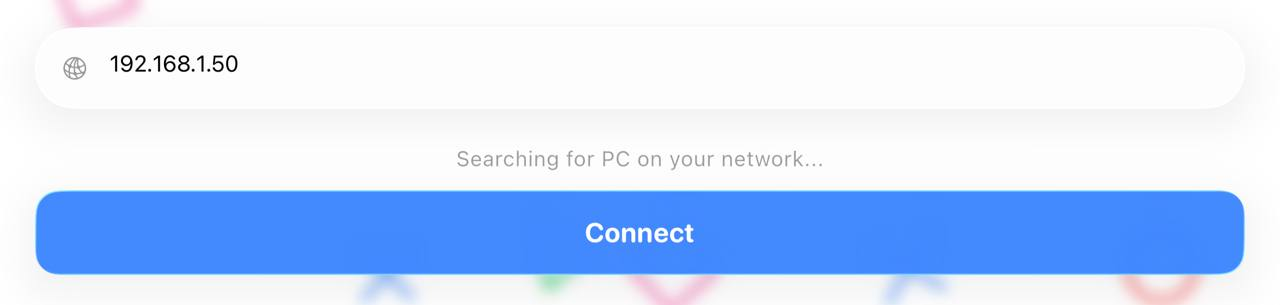
Type that address into the phone app and tap Connect. Your phone is now the gamepad — alt-tab and play.
Play in landscape, then bend the layout until it feels right.
Play
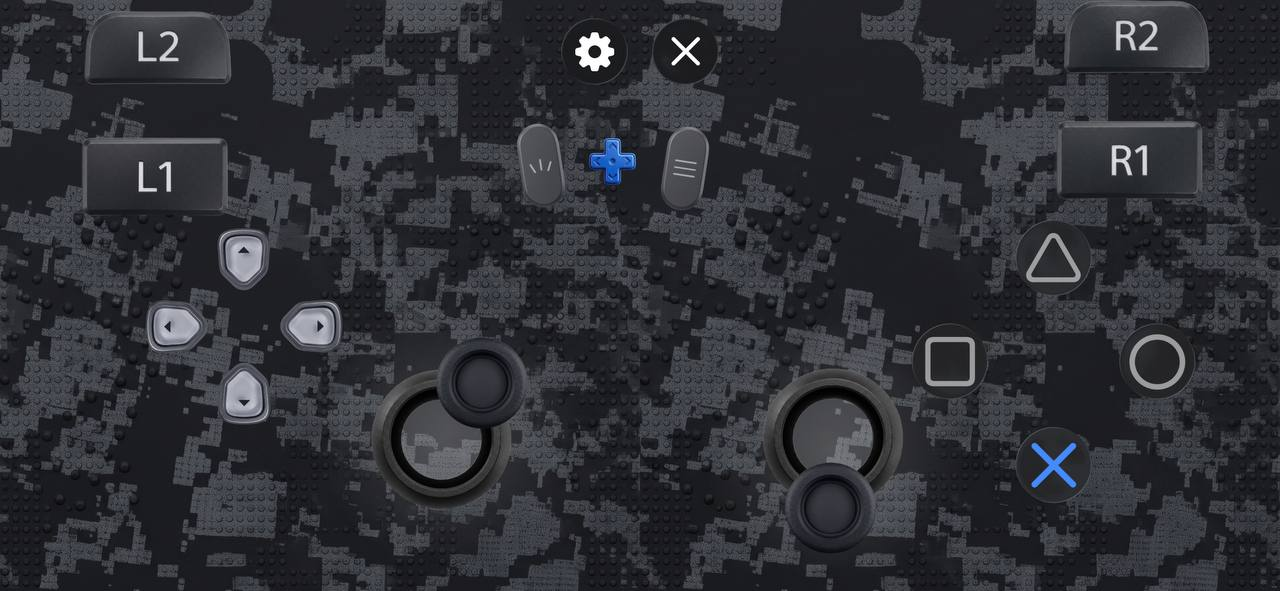
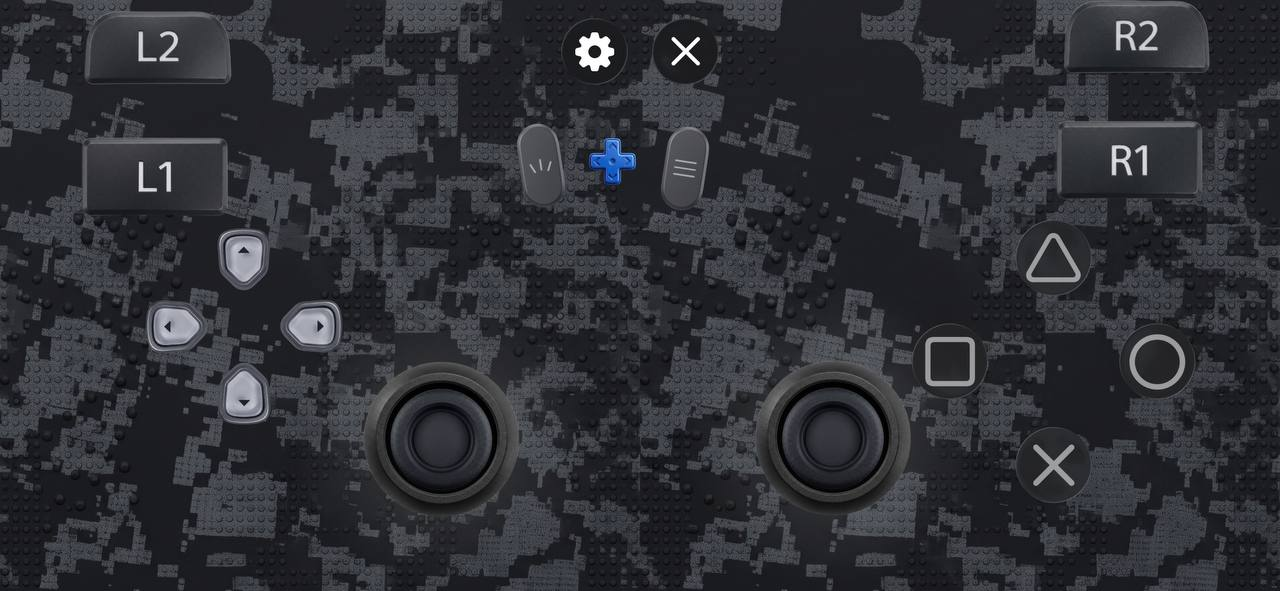
The full gamepad in landscape — sticks, d-pad, triggers and face buttons.
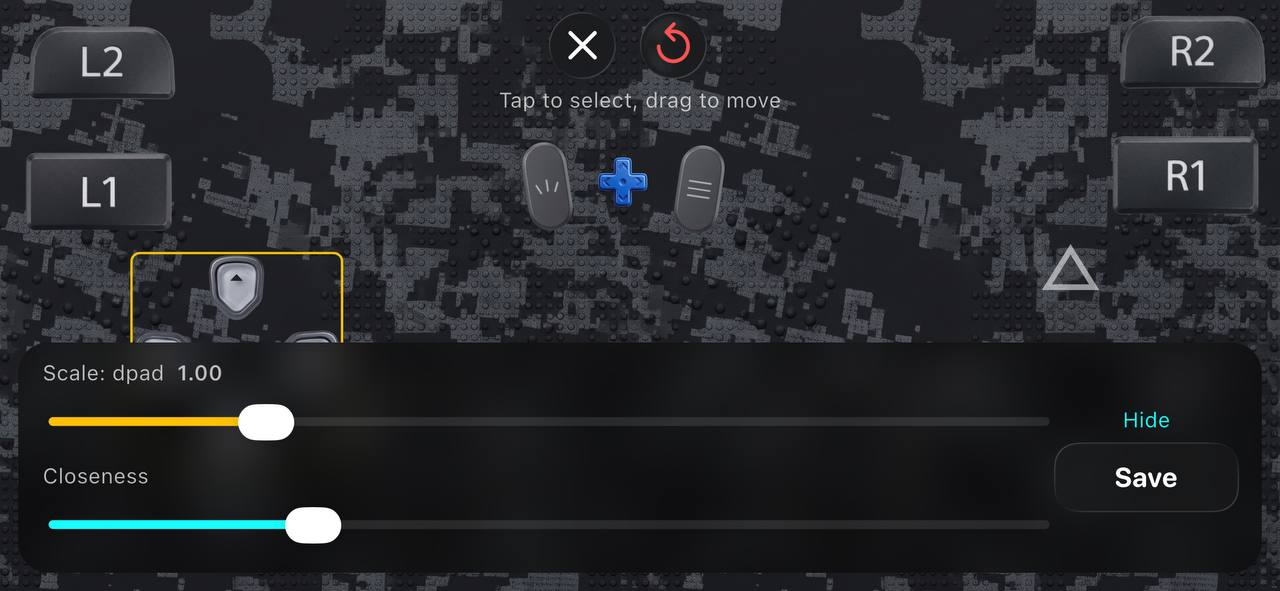
Edit layout
Tap to select, drag to move, then scale each control to fit your thumbs.